AI Click

Claude Desktop
dev模式配置版本

通过 Claude Desktop 内置 Developer Mode 直接配置第三方推理网关,不需要 CC Switch/CSS。
Configure a third-party inference gateway directly in Claude Desktop via Developer Mode, without CC Switch/CSS.

1. 开启开发者模式 / Enable Developer Mode

如果菜单里没有 Developer,需要先从 Help 的 Troubleshooting 里开启开发者模式,然后重启客户端。
If Developer is not visible in the menu, enable Developer Mode from Help -> Troubleshooting, then restart Claude Desktop.

菜单路径 / Menu path

按图操作,开启后重启 Claude Desktop。
Follow the screenshot, then restart Claude Desktop.

  1. 1点击左上角菜单,进入 Help
    Open the top-left menu and choose Help.
  2. 2选择 Troubleshooting
    Choose Troubleshooting.
  3. 3点击 Enable Developer Mode
    Click Enable Developer Mode.
  4. 4完全退出并重新打开 Claude Desktop。
    Fully quit and reopen Claude Desktop.
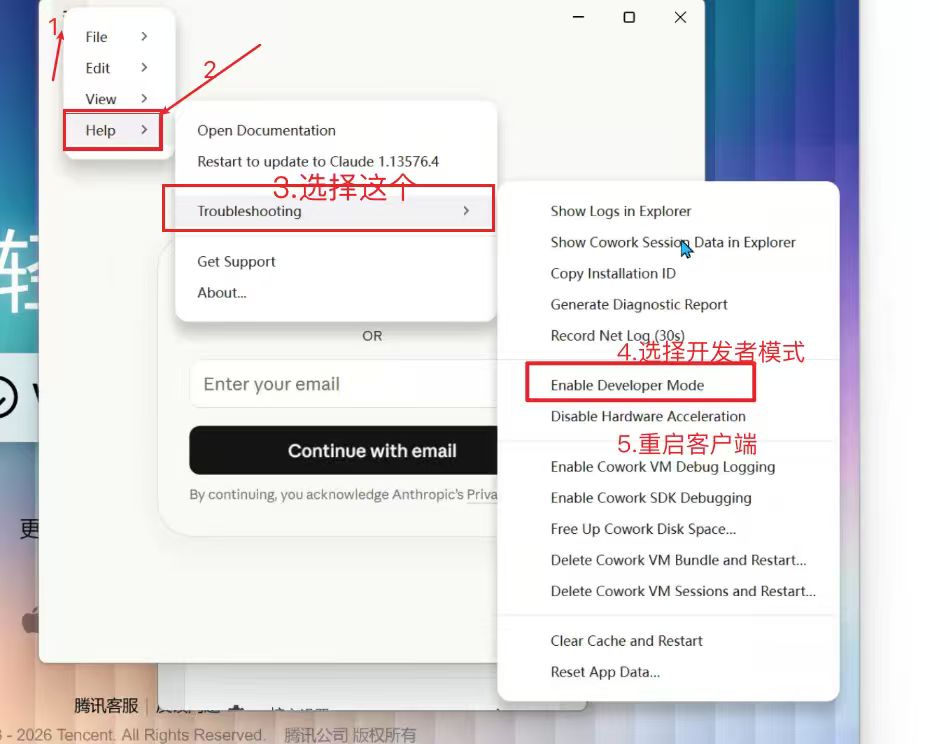
Enable Developer Mode in Claude Desktop
图 1 / Figure 1: Help -> Troubleshooting -> Enable Developer Mode.

2. 打开第三方推理配置 / Open Third-Party Inference

重启后,菜单里会出现 Developer,进入第三方推理配置页。
After restart, the Developer menu appears. Open the third-party inference settings page.

配置入口 / Configuration entry

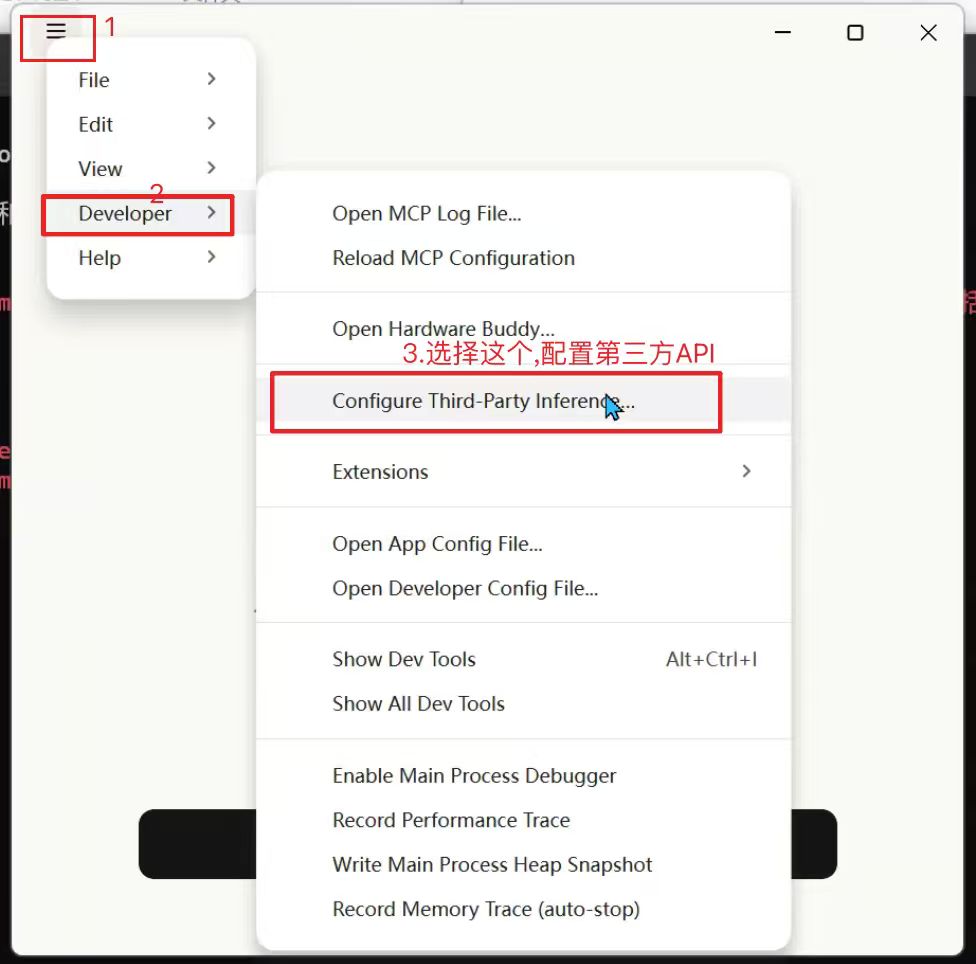
进入 Developer 后选择 Configure Third-Party Inference。
Open Developer and choose Configure Third-Party Inference.

  1. 1点击左上角菜单。
    Click the top-left menu.
  2. 2展开 Developer
    Open Developer.
  3. 3选择 Configure Third-Party Inference...
    Choose Configure Third-Party Inference....
Configure Third-Party Inference menu
图 2 / Figure 2: Developer -> Configure Third-Party Inference.

3. 填写网关连接参数 / Fill Gateway Connection

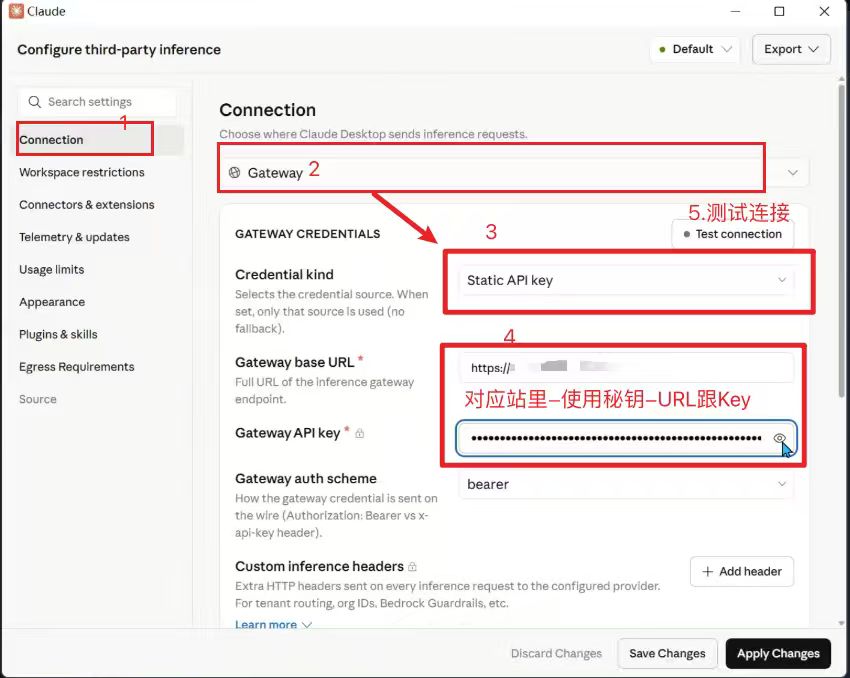
Connection 选择 Gateway,凭据选择 Static API key,然后填写中转站 URL 和 Key。
Set Connection to Gateway, Credential kind to Static API key, then enter the gateway URL and API key.

推荐填写 / Recommended values

Anthropic 协议 Base URL 不需要 /v1,Auth scheme 一般选 bearer。
For Anthropic-compatible gateway, do not append /v1 to the Base URL. Auth scheme is usually bearer.

ConnectionGateway
Credential kindStatic API key
Gateway base URLhttps://ai.aiclick.cc
Gateway API key填写站里生成的 API Key / Enter the API key generated in the gateway dashboard
Gateway auth schemebearer
如果你的后台显示了不同的专属 URL,以后台为准;Claude Desktop 开发者模式使用 Anthropic 协议时通常不要额外拼接 /v1。
If your dashboard shows a dedicated URL, use that value. For Claude Desktop Developer Mode with Anthropic-compatible protocol, usually do not append /v1.
Claude Desktop gateway connection settings
图 3 / Figure 3: Connection -> Gateway, Static API key, Base URL and API Key.

4. 测试连接和模型发现 / Test Connection and Model Discovery

先测试连接,再测试模型发现;能看到模型列表就说明配置基本成功。
Test the connection first, then test model discovery. Seeing the model list means the setup is basically working.

保存并应用 / Save and apply

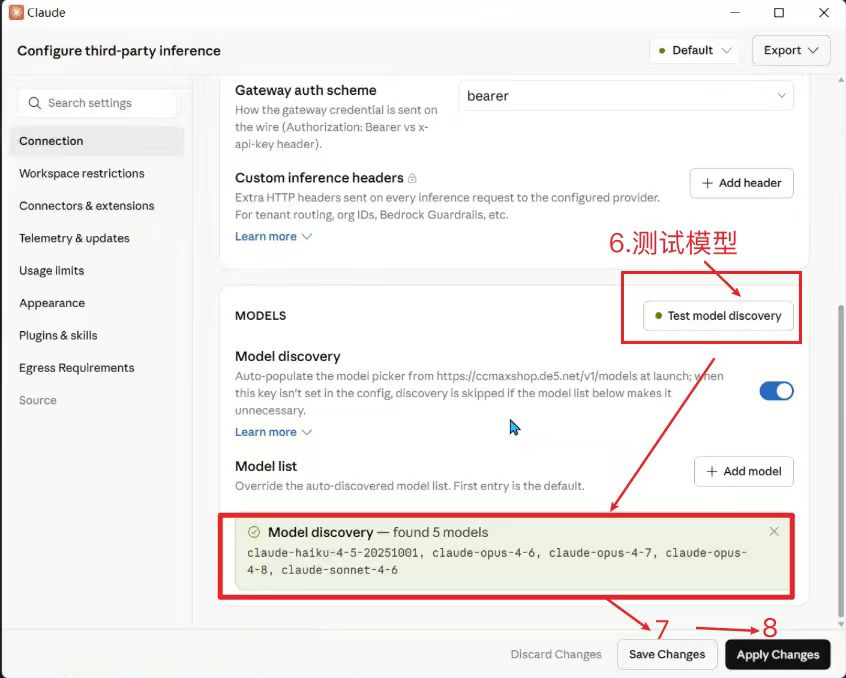
模型发现成功后,先 Save Changes,再 Apply Changes。
After model discovery succeeds, click Save Changes, then Apply Changes.

  1. 1点击 Test connection
    Click Test connection.
  2. 2在 Models 区域打开 Model discovery
    Enable Model discovery in the Models section.
  3. 3点击 Test model discovery,确认出现 found models。
    Click Test model discovery and confirm models are found.
  4. 4点击 Save ChangesApply Changes
    Click Save Changes and Apply Changes.
Test model discovery success
图 4 / Figure 4: Model discovery found models, then save and apply changes.

验证与排查 / Verification and Troubleshooting

配置完成后,用一句短消息测试;失败时按地址、Key、模型列表逐项检查。
After setup, test with a short message. If it fails, check URL, API key, and model discovery in order.

401 / Auth failed

Key 错误或复制多了空格。
The key is wrong or contains extra spaces.

  1. 1重新复制 API Key。
    Copy the API key again.
  2. 2确认 Auth scheme 是 bearer。
    Confirm the auth scheme is bearer.

404 / URL error

Base URL 填错最常见。
The Base URL is usually the problem.

  1. 1优先检查是否是 https://ai.aiclick.cc
    First check whether it is https://ai.aiclick.cc.
  2. 2不要额外拼接 /v1/v1/chat/completions
    Do not append /v1 or /v1/chat/completions.

No models

模型发现失败时先测连接。
If discovery fails, test the connection first.

  1. 1确认 Model discovery 已开启。
    Make sure Model discovery is enabled.
  2. 2重新点击 Test model discovery。
    Click Test model discovery again.